
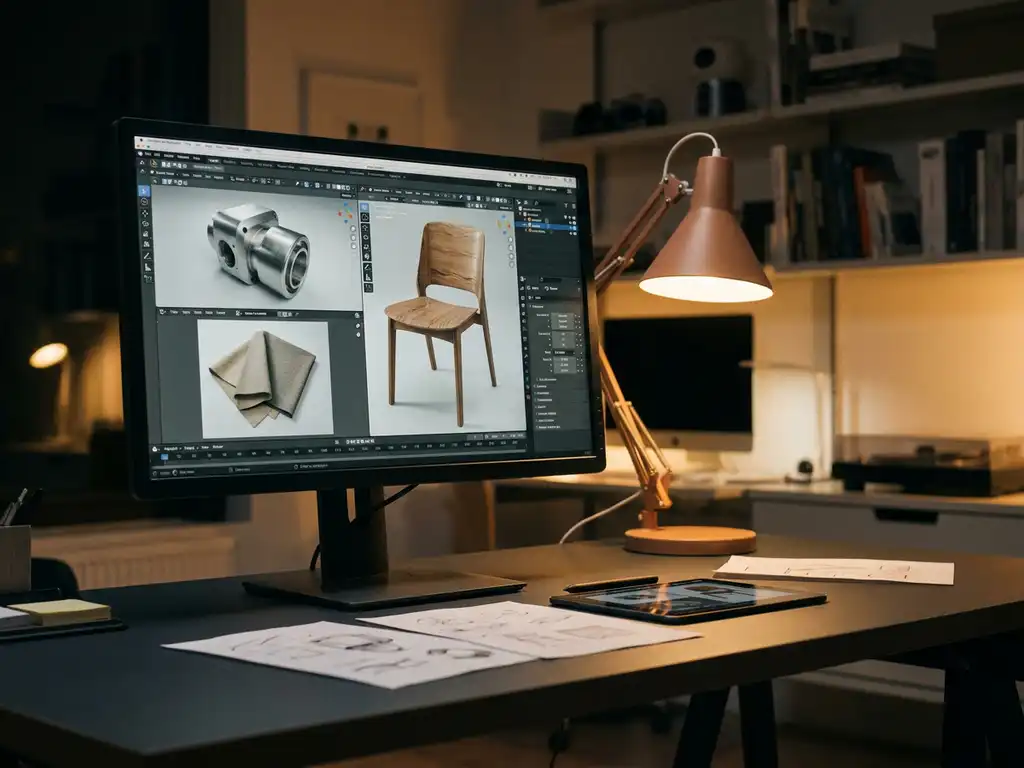
In 2026, the best free rendering software options — including Blender, D5 Render, Octane Render, and LuxCoreRender — deliver professional-quality results without licensing costs, but choosing the right tool depends on your hardware, workflow, and commercial use requirements. This page compares the most widely used free rendering tools across quality, commercial licensing, workflow integration, and hardware requirements, so you can make an informed decision before committing to a download. Whether you’re a furniture designer producing product shots, an architect creating walkthroughs, or a marketing professional building e-commerce visuals, the right free renderer exists for your pipeline. That said, when standalone tools reach their limits, a purpose-built visual commerce platform like 3Dimerce becomes the smarter investment for businesses that need stunning, sales-ready visuals at scale.
Why is slow rendering killing your project deadlines?
Slow rendering software is one of the most common bottlenecks in 3D visualization workflows. When rendering takes hours or even days to produce a single high-quality image, you’re not just losing time — you’re losing opportunities. Every delayed render means missed client presentations, postponed product launches, and frustrated stakeholders waiting for visual approvals. The cost compounds quickly: a project that should take two weeks stretches into a month, pushing other work into overtime and eroding profit margins.
The solution lies in choosing rendering software optimized for your hardware and workflow. Modern GPU-accelerated renderers like Octane Render can reduce rendering times from hours to minutes, while cloud-based solutions let you scale processing power on demand. Investing in efficient rendering tools transforms your creative process from a bottleneck into a competitive advantage.
What does poor render quality signal about your visual strategy?
Grainy, unrealistic renders don’t just look unprofessional — they signal to clients and customers that your visual standards don’t match your product quality. In today’s market, where consumers expect photorealistic product visualization, subpar renders can directly impact sales conversions and brand perception. A furniture manufacturer using low-quality renders might see potential customers question the actual product quality, leading to abandoned shopping carts and lost revenue.
The fix requires understanding that rendering quality stems from both software capabilities and proper setup. Free tools can produce stunning results when configured correctly with appropriate lighting, materials, and post-processing workflows. Focus on mastering fundamental rendering principles rather than immediately upgrading to expensive software — often the limitation is technique, not tools.
Visual Commerce Solutions
Talk to our team about your project.
What is rendering software and why do you need it?
Rendering software transforms 3D models into photorealistic images or animations by calculating how light interacts with virtual objects, materials, and environments. This process involves complex mathematical computations that simulate real-world physics, creating images that can be indistinguishable from photographs.
Businesses across industries rely on rendering software for product visualization, architectural presentations, marketing materials, and prototyping. Instead of expensive photoshoots for every product variant, companies can create unlimited visual content digitally. This approach proves especially valuable for configurable products — such as furniture with multiple finish and fabric options — where traditional photography becomes impractical due to the sheer number of possible combinations.
The technology has evolved from requiring specialized hardware and deep technical expertise to becoming accessible through user-friendly interfaces and cloud-based solutions. Modern rendering engines can produce broadcast-quality visuals on standard computers, making high-end visualization capabilities available to studios and businesses of all sizes.
Which Free Rendering Software Offers the Best Quality in 2026?
For professional-quality results at no cost, the best free 3D rendering software options — Blender, Octane Render (free tier), LuxCoreRender, and KeyShot (free version) — are the most widely used across professional pipelines. Each serves different use cases and hardware configurations.
Blender stands out as the most comprehensive free rendering solution, offering multiple rendering engines including Cycles for photorealistic results and Eevee for real-time visualization. Its node-based material system rivals expensive commercial alternatives, while active community development ensures continuous improvements and extensive learning resources.
Octane Render provides a free personal license that delivers GPU-accelerated rendering with exceptional quality. Its spectral rendering approach produces highly accurate lighting and materials, making it popular among professionals who need commercial-grade results without upfront costs. The software excels at architectural visualization and product rendering.
Other noteworthy free rendering tools include LuxCoreRender for unbiased, physically accurate rendering, and KeyShot, which offers a free version with limited features but maintains its reputation for ease of use and material quality. D5 Render is a GPU-accelerated real-time renderer with a free tier that allows unlimited project creation and produces output without watermarks. Its LiveSync plugin ecosystem integrates directly with SketchUp, 3ds Max, Rhino, Revit, and Archicad, making it a strong choice for design professionals who need real-time rendering free of complex setup overhead. Twinmotion, powered by Unreal Engine and free for architects and designers below a revenue threshold, delivers immersive architectural visualization with high-quality real-time output and direct compatibility with Revit and SketchUp. Radeon ProRender is AMD’s open-source, physically based renderer compatible with Blender, Maya, and 3ds Max — a solid no-watermark rendering software option for teams already working within AMD hardware ecosystems. Each option serves different needs, from hobbyist projects to professional visualization workflows.
Free Rendering Software Comparison: Which Tool Is Right for You?
Use the table below to quickly compare the most widely used free rendering tools across the criteria that matter most to professional designers and visualization specialists. Whether you’re evaluating free render engines for the first time or narrowing down a shortlist, this free rendering tools comparison covers the essentials.
| Tool | Engine Type | Commercial Use | Watermark on Output | OS Support | Primary Use Case | Learning Curve | Notable Integration |
|---|---|---|---|---|---|---|---|
| Blender (Cycles/Eevee) | GPU/CPU/Hybrid | Yes (GPL) | No | Windows, macOS, Linux | Product, animation, architecture | Advanced | OBJ, FBX, USD native import |
| Octane Render (free tier) | GPU | Limited (personal only) | No | Windows, macOS, Linux | Product rendering, architectural visualization | Intermediate | Cinema 4D, 3ds Max, Rhino plugins |
| LuxCoreRender | CPU/GPU | Yes (open-source) | No | Windows, macOS, Linux | Physically accurate rendering | Advanced | Blender plugin |
| KeyShot (free version) | CPU/GPU | No (non-commercial) | Yes | Windows, macOS | Product visualization, industrial design | Beginner | SolidWorks, Rhino, CATIA |
| D5 Render (free tier) | GPU (real-time) | Yes | No | Windows | Architectural and interior visualization | Beginner | SketchUp, Revit, 3ds Max, Rhino, Archicad (LiveSync) |
| Twinmotion (free for architects) | GPU (real-time) | Yes (below revenue threshold) | No | Windows, macOS | Architectural visualization, walkthroughs | Beginner | Revit, SketchUp, ArchiCAD |
| Radeon ProRender | GPU/CPU | Yes (open-source) | No | Windows, macOS, Linux | Product and industrial rendering | Intermediate | Blender, Maya, 3ds Max |
How to Choose the Best Free Rendering Software for Your Needs
With so many free rendering tools available, narrowing your choice can feel overwhelming. Working through a structured decision process helps you identify the right fit for your workflow, hardware, and commercial requirements — before you invest time in learning a tool that doesn’t suit your needs.
- Define your primary use case. Are you rendering products, architectural spaces, or marketing visuals? Your use case determines which engine type and feature set matters most. Refer to the use-case recommendations section below for segment-specific guidance.
- Assess your hardware. GPU type, VRAM capacity, and available RAM all determine which tools will run smoothly on your machine. Check the system requirements section later in this page before committing to a GPU-heavy renderer like Octane or D5 Render.
- Check commercial licensing requirements. If you’re producing renders for clients or e-commerce, licensing is a binary decision factor. Refer to the watermark and commercial licensing callout in the limitations section to verify each tool’s terms at a glance.
- Evaluate integration with your existing 3D modeling software. A renderer is only as useful as its ability to accept your geometry and materials. Check the workflow integration section to confirm your preferred tool connects with your current pipeline — whether that’s SketchUp, Revit, Rhino, or SolidWorks.
- Consider your learning curve tolerance and available onboarding time. Blender offers unmatched flexibility but demands a steeper investment to master. D5 Render and KeyShot prioritize ease of use and are typically productive within hours. Match the tool’s complexity to the time you can realistically allocate.
If your evaluation reveals that a standalone renderer cannot meet your commercial-scale visualization needs, a purpose-built platform like 3Dimerce may be the more efficient path forward.
Best Free Rendering Software by Use Case
Different professional segments have fundamentally different rendering priorities. A furniture designer needs photorealistic material accuracy; an architect needs real-time walkthrough capability; a marketing professional needs speed and clean output. The recommendations below match the strongest free tools to each professional context.
Furniture & Product Designers
Blender Cycles is the strongest free choice for furniture and product designers. Its node-based material system allows precise control over wood grain, fabric texture, metal finishes, and surface reflectivity — the level of detail that separates a convincing product render from a generic one. The ability to create complex, layered materials makes it particularly well suited to the high-end furniture and luxury goods segment, where material authenticity directly influences buyer confidence.
Architects & Interior Designers
D5 Render and Twinmotion are the standout free options for architects and interior designers. Both tools offer real-time rendering free of lengthy processing waits, enabling live walkthroughs and instant design iteration. Their direct integration with Revit, SketchUp, and ArchiCAD — via LiveSync in D5 Render’s case — means geometry and materials transfer without manual re-setup, keeping the focus on design decisions rather than pipeline management.
Marketing & E-Commerce Professionals
KeyShot’s free version is the most accessible starting point for marketing and e-commerce professionals who need clean, studio-style renders quickly. Its streamlined interface reduces the time between importing a model and producing a presentation-ready image — a critical advantage when working across large product catalogues. Note that the free version adds a watermark and restricts commercial use, so verify licensing terms before using outputs in client-facing materials.
Industrial & Engineering Designers
Blender combined with Radeon ProRender offers a capable free pipeline for industrial and engineering designers. Blender’s native support for OBJ, FBX, and USD formats means CAD geometry imports cleanly, while Radeon ProRender’s physically based rendering delivers accurate material and lighting simulations suited to technical product visualization. The open-source nature of both tools also means no licensing friction for commercial deliverables.
For businesses in the furniture, luxury goods, and high-end design space that need to move beyond standalone rendering tools, 3Dimerce provides a fully integrated visual commerce platform purpose-built for the premium segment — eliminating the gaps that free tools inevitably leave in professional workflows.
How Free Rendering Software Integrates With Your Existing 3D Workflow
Rendering software is only as valuable as its ability to slot into your existing pipeline. A renderer that produces stunning output but requires hours of manual geometry preparation or material re-creation for every project introduces overhead that quickly erodes its appeal — particularly for professional studios managing multiple concurrent projects.
Blender
Blender supports native import of OBJ, FBX, and USD formats, making it compatible with virtually every major 3D modeling application. USD (Universal Scene Description) is increasingly the preferred format for complete scene transfer, preserving geometry, materials, lights, and cameras in a single package. For teams working across multiple software environments, Blender’s broad format support makes it a reliable hub renderer.
Octane Render
Octane Render operates primarily as a plugin renderer within host applications rather than as a standalone tool. Official plugins are available for Cinema 4D, 3ds Max, and Rhino, allowing artists to render directly within their modeling environment without exporting geometry. This tight integration reduces pipeline friction and preserves material assignments made in the host application.
D5 Render
D5 Render’s LiveSync plugin system is one of its most significant differentiators. Real-time, bidirectional sync is available for SketchUp, Revit, 3ds Max, Rhino, and Archicad — meaning design changes made in the modeling application update instantly in D5 Render without re-importing. For architects and interior designers iterating rapidly on spatial layouts, this eliminates one of the most time-consuming steps in a traditional rendering pipeline.
KeyShot
KeyShot supports direct import from SolidWorks, Rhino, and CATIA, making it a natural fit for industrial and product designers working in engineering-focused CAD environments. Its import process is designed to preserve assembly structure and part materials, reducing the manual reassignment work that typically accompanies geometry transfer between applications.
File Format Best Practices for Cross-Software Pipelines
For cross-software pipelines, OBJ and FBX remain the most universally supported geometry formats, though neither reliably transfers complex material data. USD is the emerging standard for complete scene interchange and is increasingly supported across Blender, Houdini, and major DCC applications — though adoption is still uneven. When working between applications, export textures separately as high-resolution PNG or EXR files and document material settings for recreation in the target renderer. This approach minimizes data loss and reduces rework when moving assets between tools.
For businesses that need fully managed pipeline integration without the overhead of plugin configuration and format troubleshooting, our platform at 3Dimerce handles the entire visual pipeline — from model ingestion to final render delivery — as a managed service purpose-built for luxury and design brands.
What’s the difference between real-time and offline rendering?
Real-time rendering and offline rendering differ primarily in speed versus quality. Real-time rendering generates images instantly as you work, enabling interactive experiences and immediate feedback. Offline rendering takes significantly longer but produces higher accuracy through precise light simulation — including reflections, refractions, and global illumination — that real-time engines can only approximate.
Real-time engines like Unreal Engine or Unity power video games and interactive applications where responsiveness matters more than perfect accuracy. They use approximations and shortcuts to maintain smooth frame rates, trading some visual fidelity for speed.
Offline rendering takes significantly longer but produces higher quality results through more accurate light calculations and complex material simulations. These renderers can spend minutes or hours on a single frame, calculating precise reflections, refractions, and global illumination effects that real-time engines approximate.
The choice depends on your application: real-time rendering suits interactive product configurators where customers need immediate visual feedback, while offline rendering works better for marketing materials and final presentation imagery. Many modern workflows combine both approaches, using real-time engines for initial design work and offline rendering for final output.
Free vs. Paid Rendering Software: What Do You Actually Get?
Free rendering software has dramatically narrowed the quality gap with premium alternatives. Blender’s Cycles engine produces results comparable to expensive commercial renderers, while free rendering tools like Octane Render offer identical output quality in both free and paid versions — the difference lies in licensing and additional features rather than visual results. For many professional rendering software workflows, the free tier is genuinely sufficient for production work.
Paid software typically offers advantages in workflow efficiency, customer support, and specialized features. Commercial tools like KeyShot provide streamlined interfaces designed for rapid iteration, while V-Ray offers extensive material libraries and production-proven workflows. Enterprise features like network rendering, advanced licensing, and priority support justify costs for professional studios.
The learning curve often differs significantly between free and paid options. Commercial software invests heavily in user experience design, offering intuitive interfaces and comprehensive documentation. Free alternatives may require more technical knowledge but provide greater customization flexibility and transparent development processes.
Key Limitations of Free Rendering Software to Know Before You Commit
Free rendering software comes with three common categories of limitation: licensing restrictions, support gaps, and missing professional features.
Free rendering software often restricts commercial use through licensing limitations. Personal licenses may prohibit selling rendered images or using the software for client work, requiring careful review of terms before professional use. Some tools limit output resolution, watermark images, or restrict access to premium features.
Which Free Rendering Tools Add Watermarks?
For professional users planning to deliver renders to clients or use them in e-commerce, watermarking and commercial licensing are binary decision factors. Here’s how the most widely used free rendering tools compare:
- Blender — No watermark; full commercial use permitted under the GPL license.
- D5 Render (free tier) — No watermark; unlimited projects with commercial use allowed.
- Octane Render (free tier) — No watermark, but commercial use is restricted and the free tier is limited to a single GPU.
- KeyShot (free version) — Watermark applied to output; non-commercial use only.
- LuxCoreRender — No watermark; open-source with commercial use permitted.
For professional client deliverables, always verify the current license terms directly with the software provider, as free tier conditions change frequently. This is one area where a managed platform like 3Dimerce removes uncertainty entirely — licensing and full commercial output rights are covered as part of the service.
Support and documentation quality varies widely among free options. While popular tools like Blender benefit from extensive community resources, smaller projects may lack comprehensive tutorials or troubleshooting guides. Professional users might struggle with limited customer support when facing critical project deadlines.
Performance optimization and specialized features represent another common limitation. Free software may lack advanced denoising algorithms, distributed rendering capabilities, or integration with professional pipelines. However, these limitations continue shrinking as open-source projects mature and commercial vendors offer more generous free tiers to attract users.
System Requirements: Can Your Hardware Run Free Rendering Software?
Rendering performance is directly tied to hardware. Before committing to a tool, confirming that your current machine meets its requirements saves significant frustration — particularly for GPU-dependent renderers that will either run smoothly or not at all depending on your graphics card.
Entry-Level Setup (8GB RAM, Mid-Range GPU)
At this tier, Blender’s Eevee real-time engine and D5 Render’s lower quality modes are the most viable options. Both are designed to run on modest hardware without requiring high-end GPU resources. CPU-only rendering is possible in Blender at this level, though render times for mid-complexity scenes will typically run from 30 minutes to several hours. Expect to work with simplified geometry and lower sample counts to keep projects moving.
Recommended Setup (16–32GB RAM, NVIDIA RTX 3070 or Equivalent)
This is the practical sweet spot for professional free rendering workflows. Blender Cycles and Octane Render’s free tier both deliver professional-quality results at this hardware level, with GPU-accelerated rendering reducing mid-complexity scene times to minutes rather than hours. CPU-only rendering remains viable as a fallback but is rarely the preferred approach at this tier. Most users in the furniture, product design, and architectural visualization space will find this configuration sufficient for client-grade output.
Professional Setup (32GB+ RAM, NVIDIA RTX 4080/4090 or AMD Equivalent)
At this tier, LuxCoreRender’s unbiased rendering and full Octane workflows come into their own, handling complex scenes with high polygon counts, layered materials, and multi-light setups without significant performance compromise. CPU-only rendering is rarely necessary given the GPU performance available. This setup supports production-scale rendering for luxury goods, high-end furniture, and architectural projects where visual accuracy is non-negotiable.
For businesses that cannot or do not want to invest in high-end rendering hardware, our cloud-based platform at 3Dimerce eliminates the hardware constraint entirely. Renders are processed server-side, delivering blazing-fast results regardless of the client’s local machine — making professional visual quality accessible without a capital investment in GPU infrastructure.
How 3Dimerce helps with professional rendering solutions
For furniture brands, luxury goods manufacturers, and high-end product designers, free rendering software is often a starting point — not a destination. Standalone tools can produce impressive results, but they leave critical gaps that become increasingly costly as your visual output scales: hardware bottlenecks that slow delivery, watermark and licensing restrictions that complicate client work, manual pipeline management that consumes time better spent on design, and no connection between your visuals and your sales process.
Our platform at 3Dimerce is built specifically for the luxury, furniture, and high-end design market — where visual quality is a direct commercial differentiator. Cloud-based rendering eliminates the hardware constraints covered in the system requirements section above, delivering photorealistic results in minutes rather than hours with no GPU investment required. Full commercial output rights mean there are no licensing complications for client deliverables or e-commerce use. And our fully managed pipeline integration removes the manual overhead of plugin configuration and file format troubleshooting covered in the workflow integration section — so your team focuses on creative output, not technical plumbing.
Beyond rendering, our comprehensive solution combines stunning, photorealistic visuals with integrated CPQ (Configure, Price, Quote) functionality, connecting product visualization directly to your sales workflow. The result is a complete visual product experience platform — omnichannel, scalable, and tailored to the demands of the premium segment — that standalone rendering software simply cannot replicate.
Discover how leading design brands use 3Dimerce to deliver stunning, sales-ready visuals at scale — without the constraints of standalone rendering software. Contact our team to explore what a purpose-built visual commerce platform can do for your business.
Frequently Asked Questions
How much RAM and GPU power do I need to run free rendering software effectively?
For most free rendering software like Blender, 16GB of RAM is recommended for comfortable workflow, though 8GB can work for simpler projects. GPU requirements vary: Cycles benefits from NVIDIA RTX cards with at least 6GB VRAM, while CPU rendering works on any modern processor but takes longer. Octane Render requires an NVIDIA GPU and performs best with 8GB+ VRAM for complex scenes.
Can I use free rendering software for commercial projects without legal issues?
Most free rendering software allows commercial use, but licensing varies by tool. Blender is completely free for commercial work under the GPL license. Octane Render’s free tier restricts commercial use and limits GPU access, requiring a paid license for business projects. Always check the specific license terms before using rendered images for client work or sales materials.
What’s the biggest mistake beginners make when starting with free rendering software?
The most common mistake is expecting professional results immediately without understanding fundamental rendering principles. Beginners often focus on software features rather than mastering lighting, material setup, and composition basics. Start with simple scenes, learn proper HDRI lighting techniques, and study real-world photography principles before attempting complex projects.
How long should I expect my first renders to take, and how can I speed them up?
Initial renders often take 30 minutes to several hours depending on scene complexity and hardware. Speed up rendering by reducing sample counts during testing, using denoising features, rendering at lower resolutions for previews, and optimizing geometry complexity. GPU rendering typically offers 5–10x speed improvements over CPU rendering for most modern engines.
Should I learn multiple free rendering engines or master one thoroughly?
Focus on mastering one engine thoroughly before exploring others. Blender’s Cycles offers the most comprehensive learning path with extensive tutorials and community support. Once comfortable with fundamental concepts like lighting, materials, and optimization, transitioning to other engines becomes much easier since core rendering principles remain consistent across platforms.
What file formats should I use when working between different 3D software and free renderers?
Use OBJ or FBX for geometry transfer between software, though they may not preserve all material information. For complete scene transfer, USD (Universal Scene Description) offers the best compatibility but isn’t universally supported yet. Export textures separately as high-resolution PNG or EXR files, and document your material settings for recreation in the target renderer.
When does it make sense to upgrade from free to paid rendering software?
Consider upgrading when you need dedicated customer support for critical projects, require specific enterprise features like network rendering, or work in studios with established commercial pipelines. If free software meets your quality requirements and you’re comfortable with community-based support, there’s no technical need to upgrade purely for better renders.