
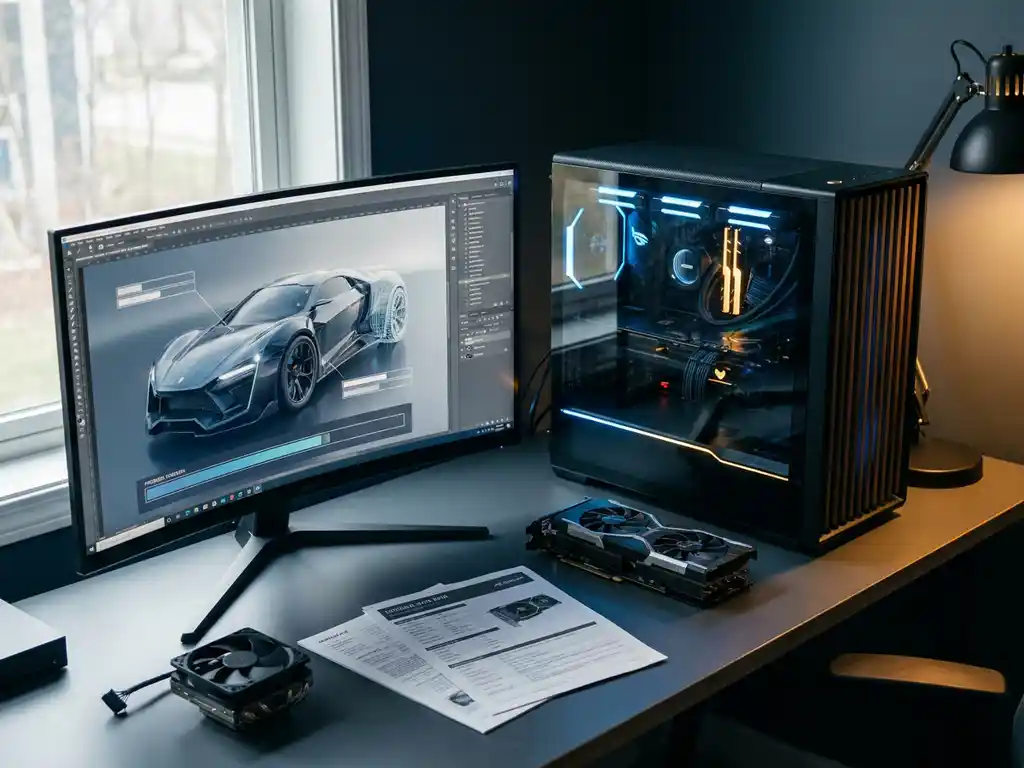
You do not need a high-end PC to run Blender 3D, but your hardware choices will directly affect how fast and comfortably you can work. A mid-range machine handles most tasks well, while more demanding projects like rendering complex scenes or working with high-polygon models will benefit from stronger specs. Below, we answer the most common questions about Blender hardware so you know exactly what you need.
Can your current PC run Blender? Check it here
Before diving into the details, it helps to know where your system stands right now. If you are wondering whether your computer can run Blender, work through this quick checklist. Each point maps to a recommended specification that covers comfortable, real-world use rather than just the bare minimum. This is a practical way to assess your Blender configuration before committing to any hardware changes.
- Does your PC have a 64-bit processor running at 2 GHz or faster? ✓
- Do you have at least 16 GB of RAM for comfortable everyday use? ✓
- Does your system have a dedicated GPU with at least 8 GB of VRAM? ✓
- Is your primary drive an NVMe SSD rather than a traditional hard drive? ✓
- Are your GPU drivers up to date? ✓
- Is your display at least 1280×768 resolution? ✓
- Does your operating system support 64-bit applications? ✓
If you can tick three or more of these boxes, you can get started with Blender today. If you are missing several points, read on for the best upgrade strategy to get your system production-ready.
What are the minimum system requirements to run Blender?
Blender’s official minimum system requirements are: a 64-bit processor running at 2 GHz or faster, 4 GB of RAM, a graphics card with 1 GB of VRAM and OpenGL 4.3 support, and a display with 1280×768 resolution. On these specs, Blender will open and function, but complex scenes will feel sluggish.
These minimums are best understood as a floor, not a target. Meeting them means Blender runs, not that it runs well. For any serious 3D work — including product modeling, animation, or rendering — you will want hardware that comfortably exceeds these baseline figures. The minimum requirements mark the starting point for casual exploration of the software, not a production-ready setup.
Does Blender need a dedicated GPU, and what if you do not have one?
Blender does not require a dedicated GPU. It can operate using integrated graphics found in most modern processors. However, a dedicated GPU makes a significant difference, particularly for Cycles rendering and viewport performance in complex scenes. Without a dedicated GPU, GPU rendering is unavailable and Blender relies entirely on the CPU.
If you plan to use Blender’s Cycles render engine, a dedicated GPU from NVIDIA or AMD is highly recommended. NVIDIA cards benefit from CUDA and OptiX support, which can dramatically reduce render times. AMD cards work well through HIP (Heterogeneous-compute Interface for Portability). For simpler tasks like modeling and basic animation, integrated graphics can be sufficient, but the moment you start rendering photorealistic visuals, a dedicated card pays for itself in saved time.
Using Blender without a dedicated GPU: what is still possible?
If you do not have a GPU and are working on integrated graphics, Blender is still usable, provided you set realistic expectations and adjust your workflow accordingly. The key is choosing the right render engine and keeping your scenes lean. Here are the most effective strategies for working without a dedicated GPU:
- Use EEVEE instead of Cycles: EEVEE is a real-time render engine that is far less GPU-intensive than Cycles. It delivers acceptable results for visualizations and animations without demanding dedicated VRAM.
- Lower your viewport resolution and disable real-time shadows: Reducing the visual load on integrated graphics keeps the viewport responsive during modeling and scene building.
- Keep scenes simple: Limit polygon counts and cap texture resolutions at 2K to avoid overwhelming shared system memory.
- Use CPU rendering as a fallback for Cycles: If you need path-traced results, CPU rendering is a viable option, though render times will be significantly longer.
Integrated graphics solutions such as Intel Iris Xe or AMD Radeon Vega are workable for learning Blender and completing simple projects. They are not suited for production rendering. If photorealistic output is your goal and you do not have a GPU, a dedicated graphics card should be your first hardware investment.
Visual Commerce Solutions
Talk to our team about your project.
How much RAM do you need for Blender? The practical limit per use case
For comfortable everyday use in Blender 3D, 16 GB of RAM is the practical minimum, and 32 GB is the recommended target for most production work. Blender’s official minimum is 4 GB — enough to open the software — but real projects with textures, modifiers, and multiple objects consume significantly more memory. Heavy scenes, simulations, or high-resolution rendering can push requirements to 32 GB or beyond.
RAM determines how much scene data Blender can hold in memory at once. Running out of RAM forces Blender to use slower disk-based virtual memory, which causes noticeable slowdowns or crashes. If you work with detailed product models, large texture maps, or particle systems, 32 GB gives comfortable headroom. For professionals doing production-level rendering or complex simulations, 64 GB is not unusual. Understanding how much RAM Blender uses in your specific workflow is the most reliable way to size your system correctly.
What slows Blender down the most?
The biggest performance bottlenecks in Blender 3D are insufficient VRAM, slow render hardware, and high polygon counts in the viewport. These three factors account for the majority of slowdowns most users experience. A weak CPU or GPU makes rendering painfully slow, while too little VRAM causes the viewport to stutter or crash during complex scenes.
The most common causes of poor Blender performance are:
- Low VRAM: Large textures and complex geometry quickly fill GPU memory, causing crashes or forcing Blender to fall back to slower CPU rendering.
- High polygon counts: Dense meshes without proper level-of-detail management bog down the viewport even on capable hardware.
- Too many light sources: Each light adds rendering complexity, especially in Cycles with path tracing enabled.
- Slow storage: Loading large texture libraries from a traditional hard drive rather than an SSD adds significant wait times.
- Insufficient RAM: When Blender runs out of system memory, performance drops sharply as it swaps data to disk.
- Outdated GPU drivers: Blender relies heavily on up-to-date drivers for GPU rendering and viewport performance.
How much does hardware actually affect render times?
The performance gap between hardware tiers in Blender is significant and worth understanding before you invest. An entry-level system without a dedicated GPU can take ten to fifteen minutes to render a simple scene in Cycles, while a mid-range RTX card using OptiX can complete the same scene in one to two minutes. At the high end, a powerful GPU with 12 GB or more of VRAM handles complex, texture-heavy scenes that would simply fail on lower-spec hardware. Render times vary considerably depending on scene complexity, sample counts, and texture resolution, so these figures are indicative rather than absolute. The Blender community actively shares open benchmark results for popular GPU models, which gives you a reliable way to compare your own hardware against real-world results before deciding whether an upgrade is worthwhile. Whether you are asking how much RAM Blender uses or whether Blender needs a GPU for your specific project type, benchmarks from comparable setups are the most honest answer available.
Cooling and thermal management for your Blender workstation
Thermal management is an underappreciated factor in sustained Blender performance, particularly for desktop users running long render sessions. During intensive rendering, both the GPU and CPU generate substantial heat. If that heat is not managed effectively, the system will trigger thermal throttling, automatically reducing clock speeds to prevent hardware damage. For a Blender workstation, a case with good airflow and at least two case fans is a sensible baseline. If you do significant CPU rendering, an aftermarket CPU cooler is a worthwhile addition. Keeping your system cool is not just about longevity — it directly determines whether your hardware delivers its rated performance throughout a full render, or quietly underperforms when you need it most. This is one aspect of Blender configuration that is easy to overlook when building or upgrading a PC.
Upgrading your existing PC for Blender: where to start
A targeted upgrade is often more cost-effective than buying an entirely new system. If your current PC handles everyday tasks but struggles with Blender, the right upgrade in the right order can dramatically improve your experience without the expense of a full rebuild. Here is the recommended priority sequence for upgrading a Blender configuration:
- GPU upgrade (highest impact): Adding a dedicated GPU or replacing a weak one delivers the largest single performance gain for both rendering and viewport interaction. Aim for at least 8 GB of VRAM. After this upgrade, you will notice dramatically faster Cycles renders and a much smoother viewport in complex scenes.
- Expand RAM to 32 GB: If you are currently running 8 or 16 GB, increasing to 32 GB eliminates the memory bottleneck that causes slowdowns and crashes in larger scenes. You will be able to work with higher-resolution textures and more complex geometry without Blender grinding to a halt.
- Replace your HDD with an NVMe SSD: Swapping a traditional hard drive for an NVMe SSD significantly reduces project load times and texture access speeds. This upgrade is relatively inexpensive and has an immediate, noticeable effect on day-to-day workflow speed.
- CPU upgrade (last priority): A CPU upgrade only makes sense once your GPU and RAM are already adequate. If you do heavy CPU rendering or complex simulations, a processor with more cores will reduce render times. For most Blender tasks, however, the GPU and RAM upgrades above will have far greater impact on how much RAM Blender uses effectively and how quickly your scenes render.
Desktop or laptop for Blender: what fits your workflow?
Both desktops and laptops can run Blender effectively, but they serve different working styles and project scales. Understanding the trade-offs helps you choose the right platform rather than discovering limitations after the fact.
Advantages of a desktop for Blender
A desktop is the stronger choice for anyone doing serious production work in Blender. Better cooling systems allow the hardware to sustain peak performance throughout long render sessions without throttling. Desktops also offer greater upgradeability: you can swap the GPU, add RAM, or install additional storage as your needs grow, without replacing the entire system. You get access to a wider range of GPU options, including high-VRAM cards that are rarely available in laptop form. And for any given performance level, desktops consistently offer a lower price per unit of performance than their mobile equivalents. For production rendering, a desktop will always be the preferred platform.
When a laptop is the better choice
A laptop makes sense when mobility is a genuine part of your workflow. On-the-go modeling, scene building, and client presentations are all manageable on a well-specified laptop with a dedicated GPU, 16 GB of RAM, and an NVMe SSD. Laptops also work well when Blender is one tool among many rather than the primary workload. The key limitation to plan for is thermal throttling: during extended renders, a laptop’s cooling system may reduce GPU and CPU performance to manage heat. Using an external cooling pad helps, but it does not fully close the gap with a desktop. For overnight production renders or complex animations, a desktop or dedicated render farm will consistently outperform even a high-spec laptop.
The best PC configuration for Blender in 2026: specs by budget
For the best price-to-performance ratio in Blender 3D in 2026, the recommended configuration is a mid-range dedicated GPU with at least 8 GB of VRAM, a modern multi-core CPU, 32 GB of RAM, and an NVMe SSD. This setup handles the full range of Blender tasks without the premium price of top-tier workstation hardware.
A practical high-value Blender build in 2026 looks like this:
- GPU: A mid-range NVIDIA RTX card with 8 to 12 GB of VRAM delivers fast Cycles rendering via OptiX and strong viewport performance. Example: RTX 4060 or RTX 4070.
- CPU: A modern processor with at least 8 cores helps with CPU rendering, simulations, and multitasking alongside Blender. Example: AMD Ryzen 7 7700X or Intel Core i7-13700.
- RAM: 32 GB DDR5 gives comfortable headroom for complex scenes, large textures, and running other applications simultaneously. This is the recommended answer to how much RAM you need for Blender in a production context.
- Storage: An NVMe SSD of 1 TB or more as your primary drive ensures fast project loading, texture access, and software responsiveness.
- Motherboard: A board compatible with your chosen CPU socket in ATX form factor gives you room to expand as your needs grow.
- Power supply: A 650W to 750W unit with 80+ Gold certification provides stable, efficient power for the full system.
- Display: A color-accurate monitor at 1920×1080 or higher lets you evaluate your work accurately without investing in a workstation display.
These are indicative example components. The market changes quickly, and pricing varies by brand, region, and availability. Use them as a starting point for your own research rather than a fixed shopping list. This Blender configuration covers the full range of professional tasks without paying for diminishing returns at the flagship tier.
Budget categories for a Blender PC build
Understanding where your budget fits helps you set realistic expectations for what Blender will feel like on your system. Here are three categories that reflect the practical range for most users building or upgrading a Blender configuration:
- Entry level (€600 to €900): Suitable for learning Blender and completing straightforward modeling projects. Expect integrated or entry-level GPU performance, 16 GB of RAM, and an SSD. Renders will be slow, but the viewport is workable for simple scenes. A good starting point if you are new to 3D and want to explore before committing to more hardware.
- Mid-range (€1,000 to €1,600): The sweet spot for independent designers and small production teams. A mid-range RTX card with 8 GB of VRAM, 32 GB of RAM, and an NVMe SSD handles the majority of professional Blender tasks smoothly. This is where how much RAM for Blender stops being a concern for most workflows.
- Professional (€2,000 and above): Built for production teams, complex animations, and high-resolution rendering. A high-end RTX card with 12 GB or more of VRAM, 64 GB of RAM, and multiple NVMe drives give you the headroom to work without compromise. Render times drop significantly and scene complexity is rarely a limiting factor.
These ranges are indicative and will vary based on brand, region, and current market availability. They give a useful frame of reference for planning your investment.
Windows, macOS, or Linux: which operating system works best with Blender?
Operating system choice is a practical factor in how well Blender runs on your hardware, yet it is often overlooked when planning a Blender configuration. All three major platforms are officially supported, but each has distinct strengths and trade-offs worth understanding before you commit.
Windows
Windows is the most widely used platform for Blender and the most straightforward choice for most users. It offers broad driver support for both NVIDIA and AMD GPUs, making it easy to get OptiX and HIP rendering up and running without technical friction. For beginners and intermediate users building or upgrading a Blender workstation, Windows presents no meaningful performance limitations and the widest compatibility with third-party plugins and tools.
Linux
Linux is popular among advanced users, studios, and render farm operators. It can offer faster OpenGL performance in certain GPU configurations and is well suited to headless rendering and server-based workflows. The trade-off is a higher technical barrier: driver installation and system configuration require more hands-on knowledge. If you are comfortable with the command line and want maximum control over your environment, Linux is a strong option for a dedicated Blender workstation.
macOS
macOS is fully supported by Blender, including Apple Silicon hardware through the Metal API. M-series chips deliver solid performance for modeling and EEVEE rendering, and the platform is a natural fit for users already working within the Apple ecosystem. The key limitation is the absence of NVIDIA GPU support on modern Apple hardware, which means OptiX-accelerated Cycles rendering is not available. For users who rely on NVIDIA for production rendering, macOS is not the right platform.
For most users, Windows remains the practical default. Its combination of broad hardware support, driver availability, and ease of use makes it the lowest-friction choice for getting the most out of your Blender configuration.
How 3Dimerce helps with 3D product visualization
Running Blender on capable hardware is one way to produce 3D visuals. For brands and manufacturers who need photorealistic product imagery at scale, however, building and managing that workflow in-house carries real costs: hardware investment, software expertise, and the ongoing time required to produce, update, and distribute visuals across every channel.
That is exactly the challenge we solve at 3Dimerce. Our visual product experience platform is built for design-led brands and premium manufacturers that demand stunning, photorealistic product visuals — without the overhead of an in-house 3D production pipeline. We specialize in the furniture, interiors, and luxury product segments where visual quality is non-negotiable and speed to market matters. Here is what we bring to the table:
- High-quality 3D product configurators that let customers explore every variant, finish, and configuration in real time.
- CGI imagery that matches or exceeds traditional photography in quality, produced faster and at a fraction of the cost.
- Seamless integration into your existing webshop or in-store sales environment through headless architecture.
- Scalable output that grows with your product range without requiring proportional increases in budget or production time.
- A platform built for premium brands in furniture, interiors, and design-led product categories where visual quality is non-negotiable.
If your brand is ready to move beyond the limitations of traditional photography and deliver a truly immersive product experience, we would love to show you what is possible. Get in touch with our team and let us build something exceptional together.
Frequently Asked Questions
Can I upgrade my existing PC to run Blender better without buying a whole new system?
Yes, targeted upgrades are often the most cost-effective path to better Blender performance. The highest-impact single upgrade is typically adding a dedicated GPU or swapping to one with more VRAM, followed by increasing RAM to 32 GB if you are currently running 16 GB or less. Replacing a traditional hard drive with an NVMe SSD is also a low-cost upgrade that noticeably reduces load times for textures and project files.
How much VRAM do I actually need, and what happens if I run out?
For most Blender projects in 2026, 8 GB of VRAM is a comfortable minimum for GPU rendering, with 12 GB or more recommended if you work with high-resolution textures or complex scenes. When your scene exceeds available VRAM, Blender will either crash the render, fall back to slower CPU rendering, or produce an out-of-memory error — none of which are ideal mid-project. Keeping an eye on Blender’s memory usage stats in the Properties panel helps you catch this before it becomes a problem.
Is an NVIDIA GPU always better than AMD for Blender, or does it depend?
NVIDIA cards currently hold a practical advantage for most Blender users because OptiX support delivers significantly faster Cycles rendering on RTX-generation hardware. That said, AMD cards running HIP are a fully functional alternative and have improved substantially in recent Blender releases. If GPU rendering speed is your primary concern, NVIDIA RTX cards offer the best performance per dollar right now; if you are on a tighter budget or primarily modeling rather than rendering, a capable AMD card is a perfectly reasonable choice.
What is the biggest mistake beginners make when buying hardware for Blender?
The most common mistake is over-investing in CPU speed while underspecifying GPU VRAM. Many beginners assume a faster processor is the key to Blender performance, but for rendering with Cycles and for smooth viewport interaction, the GPU and its VRAM capacity matter far more. A mid-range GPU with 8–12 GB of VRAM will outperform a top-tier CPU paired with a weak or integrated graphics solution in almost every practical Blender scenario.
Does the number of CPU cores or the clock speed matter more for Blender?
It depends on what you are doing. CPU rendering in Cycles scales well across many cores, so a processor with more cores and threads — even at a slightly lower clock speed — will typically produce faster render times. For viewport interaction, modifier evaluation, and simulation baking, higher single-core clock speeds become more relevant. For a well-rounded Blender workstation, a modern processor that balances both, such as a current-generation AMD Ryzen or Intel Core chip with 8 to 16 cores, covers both use cases effectively.
Can Blender use multiple GPUs to speed up rendering?
Yes, Blender’s Cycles engine supports multi-GPU rendering, allowing you to combine the power of two or more compatible GPUs to reduce render times. You can enable this in Blender’s Preferences under the System tab by selecting all available devices. Keep in mind that VRAM does not pool between GPUs — each card must individually hold the full scene in memory — so adding a second GPU helps with render speed but not with VRAM capacity limitations.
How do I know if my hardware is actually the bottleneck, or if it is something in my Blender scene setup?
A good first step is to check Blender’s built-in statistics overlay in the viewport, which shows polygon count, memory usage, and object data in real time. If your hardware usage is high but your scene stats seem reasonable, the hardware is likely the limiting factor. If your GPU and CPU are not being fully utilized but Blender still feels slow, the issue is often scene-side — such as unoptimized geometry, excessive subdivision, or too many high-resolution textures — which can be addressed through better scene management rather than a hardware upgrade.